How to Protect Your Privacy Online (2026 Guide)
Want better online privacy? This beginner-friendly guide explains how to protect your personal information, and stay safer from hackers and scams.
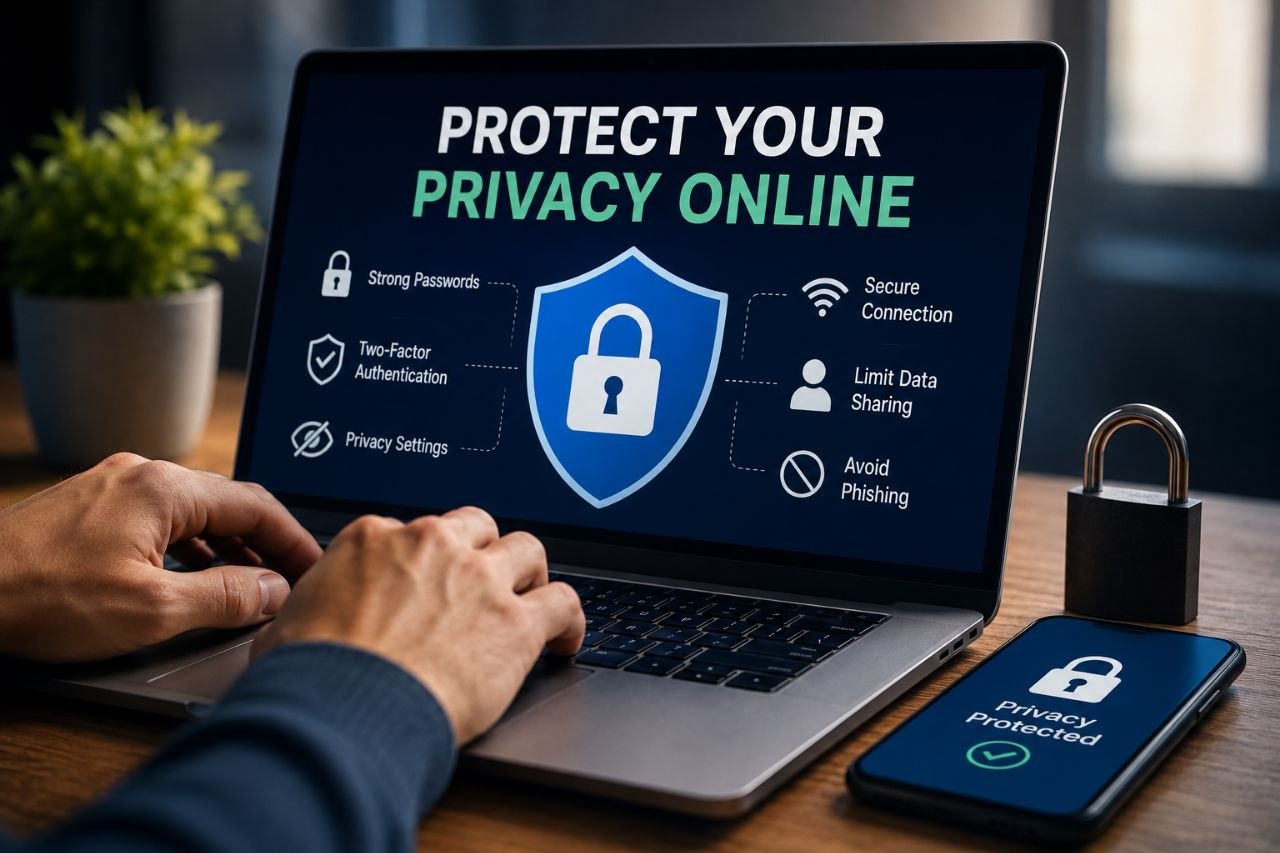
Every time you browse the internet, shop online, use social media, or download an app, you leave behind pieces of personal information. While many online services rely on collecting data to improve user experiences, cybercriminals and malicious actors are constantly looking for opportunities to exploit weak security practices.
After researching current cybersecurity recommendations, privacy best practices, and common online threats, I found that protecting your privacy doesn’t require advanced technical knowledge. A few smart habits and the right tools can dramatically reduce the chances of your personal information being exposed.
This guide explains practical steps anyone can follow to stay safer online.
Many people ask questions like:
- How can I protect my personal information online?
- How do hackers steal private data?
- Is browsing in private mode enough?
- What are the best privacy settings?
- How can I stop websites from tracking me?
With data breaches, phishing attacks, and identity theft making headlines regularly, it’s understandable why online privacy has become a growing concern.
A Simple Explanation
Online privacy is about controlling who can access your personal information and reducing unnecessary exposure.
Every website, app, or online account you use may collect data such as:
- Your name
- Email address
- Phone number
- Location
- Browsing history
- Device information
- Shopping habits
- Search history
While some data collection is necessary for services to function, limiting what you share can significantly improve your digital privacy.
Step 1: Use Strong, Unique Passwords
One of the biggest security mistakes is reusing the same password across multiple accounts.
If one website suffers a data breach, attackers often try the same password on other services.
A stronger approach is to:
- Use at least 12–16 characters.
- Mix uppercase and lowercase letters.
- Include numbers and symbols.
- Create a different password for every account.
Avoid using birthdays, names, or simple words.
Step 2: Enable Two-Factor Authentication (2FA)
Even a strong password can be stolen.
Two-factor authentication adds an extra layer of security by requiring a second verification step, such as:
- An authentication app
- A security key
- A one-time code sent to your phone
Whenever possible, choose an authentication app over SMS codes, as it generally offers stronger protection.
Step 3: Review Your Privacy Settings
Many apps and social media platforms collect more information than users realize.
Take a few minutes to review:
- Profile visibility
- Location sharing
- Contact syncing
- Ad personalization
- Activity history
- App permissions
Disabling features you don’t use can reduce unnecessary data collection.
Step 4: Be Careful What You Share Online
Oversharing personal information makes it easier for scammers to impersonate you or answer security questions.
Avoid publicly posting:
- Your home address
- Phone number
- Travel plans before you leave
- Financial information
- Government-issued identification
- Passwords or verification codes
Remember that once something is shared online, it can be difficult to remove completely.
Step 5: Watch Out for Phishing Scams
Phishing remains one of the most common ways criminals steal passwords and personal information.
Be cautious if you receive messages that:
- Create a sense of urgency.
- Ask you to click suspicious links.
- Request passwords or verification codes.
- Claim you’ve won a prize you never entered.
- Ask you to confirm banking information unexpectedly.
When in doubt, visit the company’s official website directly instead of clicking links in emails or messages.
Step 6: Keep Your Devices Updated
Software updates often contain important security patches.
Enable automatic updates for:
- Your phone
- Your computer
- Web browsers
- Apps
- Antivirus software
Running outdated software can leave known vulnerabilities unpatched.
Step 7: Secure Your Wi-Fi Connection
Your home Wi-Fi network should always be protected with a strong password.
Public Wi-Fi networks in cafés, airports, hotels, and shopping centers can also pose risks.
If you need to access sensitive accounts while using public Wi-Fi:
- Avoid logging into banking services unless necessary.
- Prefer trusted websites that use HTTPS.
- Consider using a reputable VPN for added protection, especially on unsecured networks.
Step 8: Limit App Permissions
Many apps request access to information they don’t actually need.
Regularly review permissions such as:
- Camera
- Microphone
- Contacts
- Photos
- Location
- Calendar
Only grant access when it’s necessary for the app’s core function.
Recommended Privacy Tools
The right tools can make protecting your privacy much easier.
Password Managers
Password managers securely generate and store strong, unique passwords for every account.
Popular options include:
- Bitwarden
- 1Password
- Dashlane
Authenticator Apps
Instead of relying solely on SMS codes, consider using:
- Google Authenticator
- Microsoft Authenticator
- Authy
Secure Browsers
Privacy focused browsers can reduce tracking and block many unwanted scripts.
Examples include:
- Mozilla Firefox
- Brave
Privacy Focused Search Engines
If you want to reduce personalized tracking while searching the web, alternatives like DuckDuckGo or Startpage emphasize privacy.
Common Online Privacy Mistakes
Many privacy problems result from simple habits, including:
- Using the same password everywhere.
- Ignoring software updates.
- Clicking unknown links.
- Accepting every app permission request.
- Posting too much personal information on social media.
- Connecting to unsecured public Wi-Fi without caution.
Avoiding these mistakes can significantly improve your online security.
Frequently Asked Questions
Does Incognito or Private Browsing make me anonymous?
No. Private or Incognito mode mainly prevents your browser from saving local history, cookies, and form data on your device. Your internet provider, employer (on managed networks), and the websites you visit can still see your activity.
Can hackers steal information through public Wi-Fi?
Poorly secured public Wi-Fi networks can expose users to certain risks. Using encrypted websites (HTTPS), avoiding sensitive transactions on unknown networks, and considering a trusted VPN can help reduce those risks.
Should I change my passwords regularly?
Changing passwords after a known data breach or if you suspect an account has been compromised is more important than changing them on a fixed schedule. The priority is using strong, unique passwords for every account.
Final Thoughts
Protecting your privacy online doesn’t require becoming a cybersecurity expert. Based on my research, the most effective approach is combining strong passwords, two factor authentication, updated software, careful sharing habits, and regular reviews of your privacy settings.
Share this article
More from Technology
View all →
Technology
Learn Ways to Build a Website Without Writing Code
Want to create a website without writing code? This guide explains the best no-code website builders, how to choose the right platform, and the steps to build a
Technology
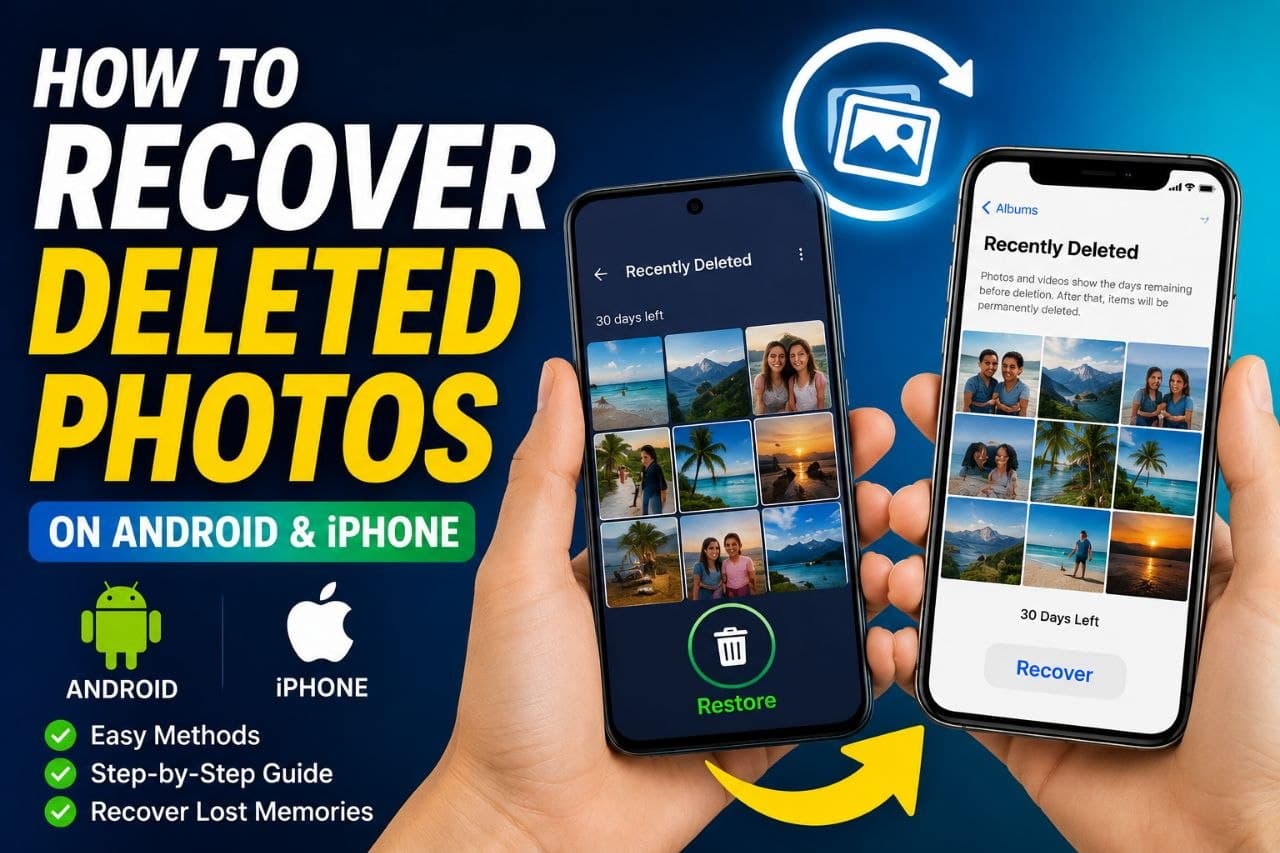
How to Recover Deleted Photos on Android and iPhone (2026 Guide)
Accidentally deleted your photos? Here’s a detailed guide showing how to recover deleted pictures on Android and iPhone, with simple steps, recovery methods, an

Technology
Best Laptops for Programming Students: Top Picks for Every Budget
Discover the best laptops for programming students in 2026. Here’s my comparison of the top models for coding, software development, computer science, and engin
Technology
Best Free VPNs (2026 Guide)
Looking for the best free VPN? we compared the top free VPN services based on security, speed, privacy, and data limits to help you choose the right one in 2026