How to Recover Deleted Photos on Android and iPhone (2026 Guide)
Accidentally deleted your photos? Here’s a detailed guide showing how to recover deleted pictures on Android and iPhone, with simple steps, recovery methods, an
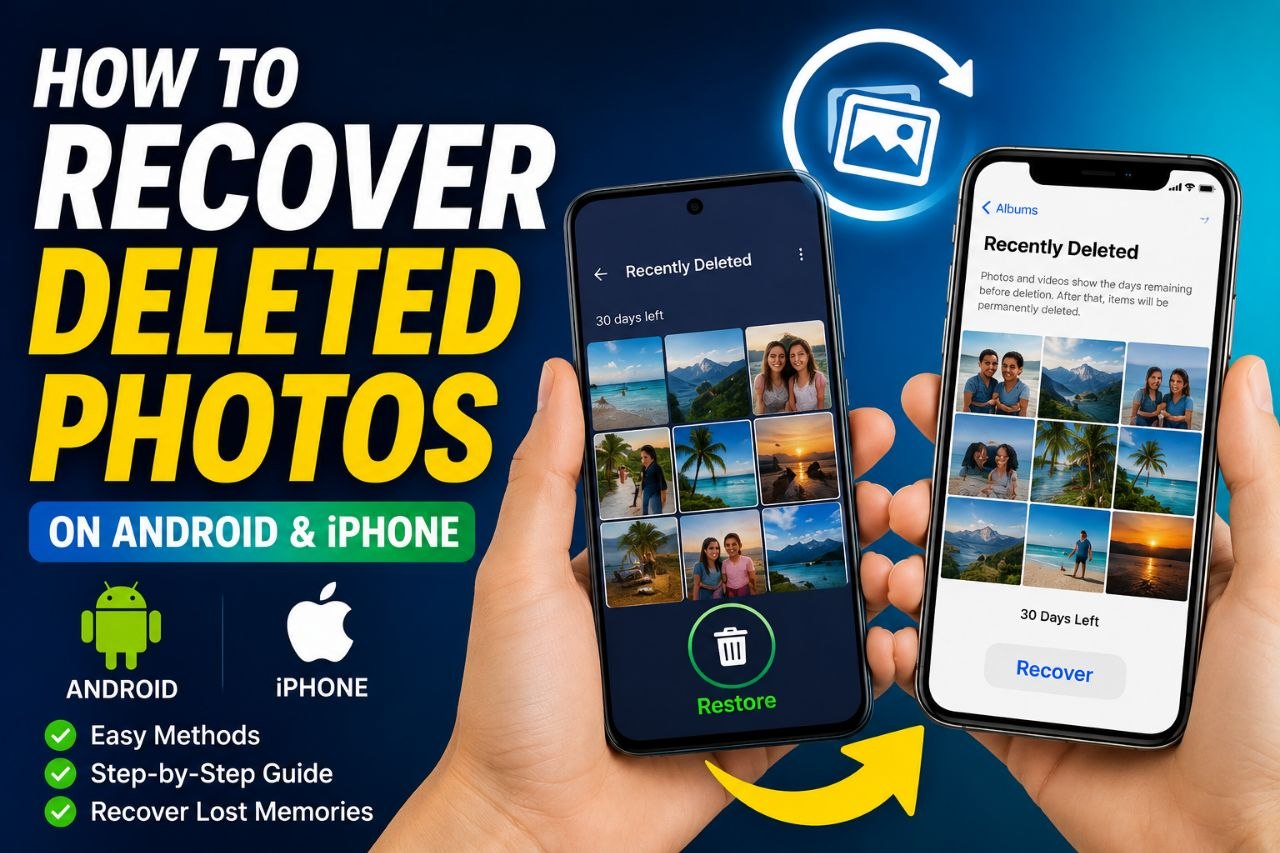
Accidentally deleting photos is something almost everyone experiences. Whether it’s family pictures, vacation memories, work images, or important documents, losing photos can be frustrating. Fortunately, in many cases, deleted photos aren’t gone forever.
After researching how Android and iPhone handle deleted files, cloud backup services, and recovery options, I found that the chances of recovering deleted photos depend mainly on how long ago they were deleted, whether cloud backup was enabled, and whether new data has overwritten the deleted files.
This guide explains exactly how to recover deleted photos on both Android and iPhone using the safest and most effective methods.
Why Deleted Photos Can Often Be Recovered
Most smartphones don’t immediately erase deleted photos permanently.
Instead, they first move them to a Recently Deleted or Trash folder, where they’re stored temporarily before being permanently removed.
If the photos are no longer there, you may still be able to recover them through cloud backups like Google Photos or iCloud Photos, or by using professional recovery software if the storage hasn’t been overwritten.
The sooner you try to recover deleted photos, the better your chances of success.
How to Recover Deleted Photos on Android
Method 1: Check the Trash Folder (Easiest Method)
Most Android phones have a built-in recycle bin.
Steps:
- Open the Gallery app.
- Scroll to Trash, Recycle Bin, or Recently Deleted (the name varies by manufacturer).
- Find the deleted photo.
- Tap Restore.
Many Android phones keep deleted photos for 30 days before removing them permanently.
Example:
- Samsung: Gallery → Menu → Recycle Bin
- Xiaomi: Gallery → Recently Deleted
- OPPO: Photos → Recently Deleted
Method 2: Recover Photos from Google Photos
If your phone automatically backed up photos, Google Photos is often the quickest recovery option.
Steps:
- Open Google Photos.
- Tap your profile picture.
- Open Trash.
- Select the photo.
- Tap Restore.
Photos remain in Google Photos Trash for up to 60 days if they were backed up before deletion.
Method 3: Restore from Google Backup
If you recently reset your phone or switched devices:
- Start the Android setup process.
- Sign in with the same Google account.
- Choose Restore Backup.
- Select your latest backup.
Your backed-up photos should download automatically.
How to Recover Deleted Photos on iPhone
Method 1: Check the Recently Deleted Album
Every iPhone includes a Recently Deleted folder.
Steps:
- Open the Photos app.
- Scroll down to Recently Deleted.
- Unlock with Face ID or Touch ID if prompted.
- Select the photos.
- Tap Recover.
Apple keeps deleted photos here for up to 30 days.
Method 2: Restore from iCloud Photos
If iCloud Photos is enabled:
- Visit Photos on another Apple device signed into the same Apple ID or sign in to iCloud Photos in a web browser.
- Check the Recently Deleted album.
- Select the photos.
- Tap Recover.
If the images were synced before deletion, they may still be recoverable.
Method 3: Restore from an iCloud Backup
If the photos aren’t in Recently Deleted but were included in an earlier backup:
- Back up your current data if needed.
- Go to Settings → General → Transfer or Reset iPhone → Erase All Content and Settings.
- During setup, choose Restore from iCloud Backup.
- Select a backup created before the photos were deleted.
Keep in mind this restores the phone to the state it was in when the backup was made.
What If the Trash Folder Is Empty?
If your photos have already been permanently deleted, recovery becomes more difficult but not always impossible.
Professional recovery software may help if the deleted data hasn’t been overwritten.
Popular recovery tools include:
- EaseUS MobiSaver
- Disk Drill
- iMobie PhoneRescue
- Wondershare Dr.Fone
- Tenorshare UltData
These tools scan your phone or backup files for recoverable data. Results vary depending on the device, storage type, encryption, and how long ago the deletion occurred.
How to Increase Your Chances of Recovery
If you’ve permanently deleted important photos:
- Stop taking new photos immediately.
- Avoid installing new apps.
- Don’t record videos.
- Don’t download large files.
- Try recovery as soon as possible.
New data can overwrite deleted files, reducing the chances of successful recovery.
How to Prevent Losing Photos Again
Once you’ve recovered your photos or even if you haven’t it’s worth setting up automatic backups.
I recommend:
- Turning on Google Photos Backup (Android).
- Enabling iCloud Photos (iPhone).
- Backing up photos to a computer regularly.
- Using an external hard drive for important memories.
- Keeping copies in more than one location.
Having multiple backups is the safest way to protect your photos from accidental deletion, phone damage, or theft.
Frequently Asked Questions
Can permanently deleted photos be recovered?
Sometimes. If the storage hasn’t been overwritten and a backup exists, recovery may still be possible. Without a backup, success depends on the device and how much it has been used since the deletion.
How long do deleted photos stay in the Trash?
- Android Gallery: Usually up to 30 days (varies by manufacturer).
- Google Photos: Up to 60 days for backed-up items.
- iPhone Photos: Up to 30 days.
Do factory resets delete photos permanently?
A factory reset removes local data from the device. However, photos stored in cloud services like Google Photos or iCloud can often be restored after signing back into the same account.
Final Thoughts
Losing important photos can feel overwhelming, but in many cases they’re recoverable if you act quickly. The first place to check is your phone’s Recently Deleted or Trash folder, followed by cloud services such as Google Photos or iCloud Photos. If those options don’t work, recovery software may help, especially if the deleted data hasn’t been overwritten.
Share this article
More from Technology
View all →
Technology
Learn Ways to Build a Website Without Writing Code
Want to create a website without writing code? This guide explains the best no-code website builders, how to choose the right platform, and the steps to build a

Technology
How to Protect Your Privacy Online (2026 Guide)
Want better online privacy? This beginner-friendly guide explains how to protect your personal information, and stay safer from hackers and scams.

Technology
Best Laptops for Programming Students: Top Picks for Every Budget
Discover the best laptops for programming students in 2026. Here’s my comparison of the top models for coding, software development, computer science, and engin

Technology
Best Free VPNs (2026 Guide)
Looking for the best free VPN? we compared the top free VPN services based on security, speed, privacy, and data limits to help you choose the right one in 2026