Learn How to Convert PDF Files Easily (2026 Step-by-Step Guide)
Need to convert a PDF? This complete guide explains how to convert PDF files into Word, images, and other formats or create PDFs from documents and photos using
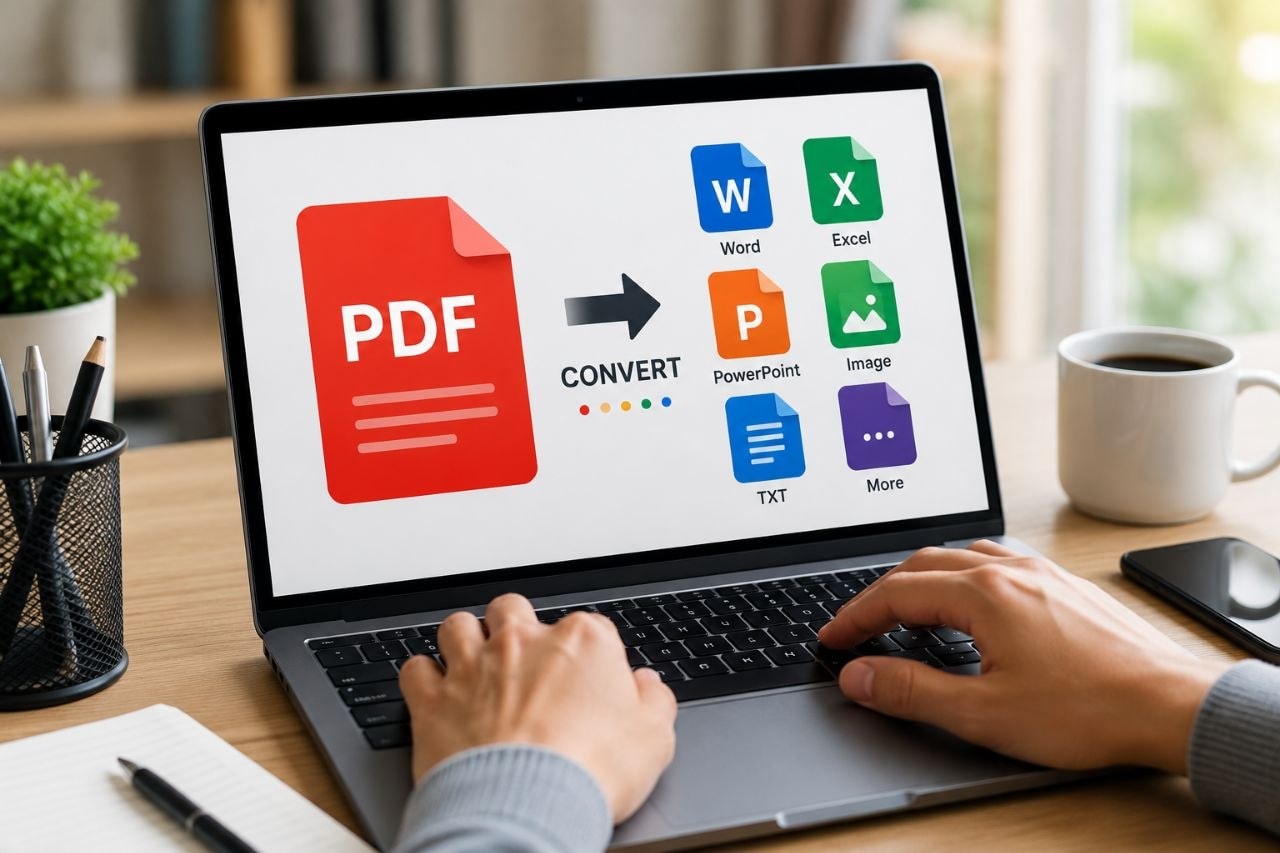
PDF files are one of the most widely used document formats because they preserve formatting across different devices and operating systems. However, there are many situations where you may need to convert a PDF into another format or convert another file into a PDF.
Whether you’re editing a resume, converting scanned documents into editable text, turning Word files into PDFs, or extracting images from a PDF, the process is much easier than many people think.
After researching the most reliable methods across Windows, Mac, Android, iPhone, and web-based tools, I’ve put together this practical guide to help you convert PDF files quickly and safely.
Many users ask questions like:
- How do I convert a PDF to Word?
- How do I convert Word to PDF?
- Can I convert PDF files without paying?
- How do I convert a scanned PDF into editable text?
- Which PDF converter is safe?
The good news is that most PDF conversions can now be completed in just a few minutes using built-in software or trusted online tools.
A Simple Explanation
A PDF (Portable Document Format) is designed to look the same on every device. Unlike Word documents, PDFs aren’t meant to be edited easily.
Converting a PDF simply changes it into another file format so you can edit, share, compress, or reuse its contents.
Some of the most common conversions include:
- PDF → Word
- PDF → Excel
- PDF → PowerPoint
- PDF → JPG or PNG
- Word → PDF
- Excel → PDF
- Images → PDF
The quality of the converted file often depends on whether the original PDF contains selectable text or is simply a scanned image.
How to Convert PDF to Word
One of the most common tasks is turning a PDF into an editable Microsoft Word document.
Step 1
Open your preferred PDF converter.
Step 2
Upload the PDF file.
Step 3
Choose Convert to Word (.docx).
Step 4
Wait for the conversion to finish.
Step 5
Download the new Word document and review the formatting.
How to Convert Word to PDF
If you’ve created a document in Microsoft Word, converting it into a PDF is simple.
Windows
- Open the Word document.
- Click File.
- Select Save As or Export.
- Choose PDF.
- Save the file.
Mac
- Open the document.
- Click File.
- Select Export as PDF.
- Save it.
Most office applications now include built-in PDF export features.
How to Convert PDF to JPG
Sometimes you only need the pages as images.
Steps
- Open a trusted PDF converter.
- Upload your PDF.
- Choose PDF to JPG.
- Select the pages.
- Download the images.
This is useful for presentations, social media, or sharing individual pages.
How to Convert Images into a PDF
You can combine multiple photos into a single PDF.
On Android
- Open Google Drive or your Gallery app (if supported).
- Scan or select images.
- Choose Save as PDF.
On iPhone
- Open the Files app or use the Print option in Photos.
- Select the images.
- Save or share them as a PDF.
On Windows
Use Microsoft Print to PDF to print images into one PDF file.
How to Convert Scanned PDFs into Editable Text
If your PDF is a scanned document, normal conversion may not work because the file contains images instead of actual text.
In this case, you’ll need OCR (Optical Character Recognition).
OCR recognizes text inside images and converts it into editable text.
Steps
- Upload the scanned PDF.
- Choose OCR Conversion.
- Select the language.
- Start the conversion.
- Download the editable file.
OCR works well for printed documents but may struggle with handwritten notes or poor-quality scans.
Can You Convert PDFs Without Installing Software?
Yes.
Many reliable online converters allow you to convert PDFs directly from your web browser.
This is often the quickest option if you’re using a shared computer or don’t want to install additional software.
However, avoid uploading confidential documents to unknown websites, especially if they contain sensitive personal or financial information.
Recommended PDF Conversion Tools
After comparing ease of use, features, and reliability, these are among the best options:
Adobe Acrobat Online
Best for professional-quality PDF conversions and preserving formatting.
Smallpdf
Simple interface with support for Word, Excel, JPG, PowerPoint, and compression.
ILovePDF
Offers a wide range of PDF tools, including merging, splitting, compressing, rotating, and converting files.
PDF24 Tools
A free option with many PDF editing and conversion features.
Microsoft Word
Can open many PDF files directly and convert them into editable Word documents.
Google Docs
Useful for basic PDF editing and text extraction.
Common Problems During PDF Conversion
Sometimes conversions don’t produce perfect results.
Common issues include:
- Broken formatting
- Missing fonts
- Low-quality images
- Tables shifting position
- Scanned documents remaining uneditable
- Large file sizes
If this happens, try another converter or use OCR for scanned documents.
Tips for Better Results
To improve conversion quality:
- Use high-resolution PDFs.
- Scan documents clearly.
- Avoid blurry images.
- Keep original fonts if possible.
- Use OCR for scanned files.
- Double-check formatting before sharing the converted document.
Frequently Asked Questions
Can I convert PDFs for free?
Yes. Many online tools and built-in applications offer free PDF conversion, although some limit the number of files or advanced features.
Does converting a PDF reduce quality?
Not always. Text-based documents usually retain their quality, while image-heavy PDFs may lose some detail depending on the converter and settings.
Which format is best for editing?
Microsoft Word (.docx) is generally the easiest format for editing text after conversion.
Final Thoughts
Converting PDF files is much easier today than it was a few years ago. Whether you need to edit a document, share it in another format, or create a PDF from existing files, there are reliable solutions available for almost every device.
Based on research, the easiest approach is to use built-in tools when possible and trusted PDF converters for more advanced tasks. If you’re working with scanned documents, OCR technology can make the difference between a static image and an editable file.
Share this article
More from AI
View all →
AI
Learn How to Make Viral TikTok Videos: What Actually Works in 2026
Want more views on TikTok? Learn how the TikTok algorithm works, what makes videos go viral, and the strategies successful creators use to grow their audience.
AI
How YouTube Pays Creators: A Complete Guide to Making Money on YouTube
Curious about how YouTube creators make money? This guide explains the YouTube Partner Program, ad revenue, RPM, CPM, and the different ways creators can build
AI
Use Google Sheets Like a Pro (2026 Beginner to Advanced Guide)
Want to master Google Sheets? Discover the best formulas, shortcuts, automation features, and productivity tips to organize data and work more efficiently.

AI
Best AI Image Generators (2026): The Top Tools Worth Using Right Now
Looking for the best AI image generator? Here’s comparison of the top AI image creation tools in 2026, including their strengths, weaknesses, and the best use c