Use Google Sheets Like a Pro (2026 Beginner to Advanced Guide)
Want to master Google Sheets? Discover the best formulas, shortcuts, automation features, and productivity tips to organize data and work more efficiently.
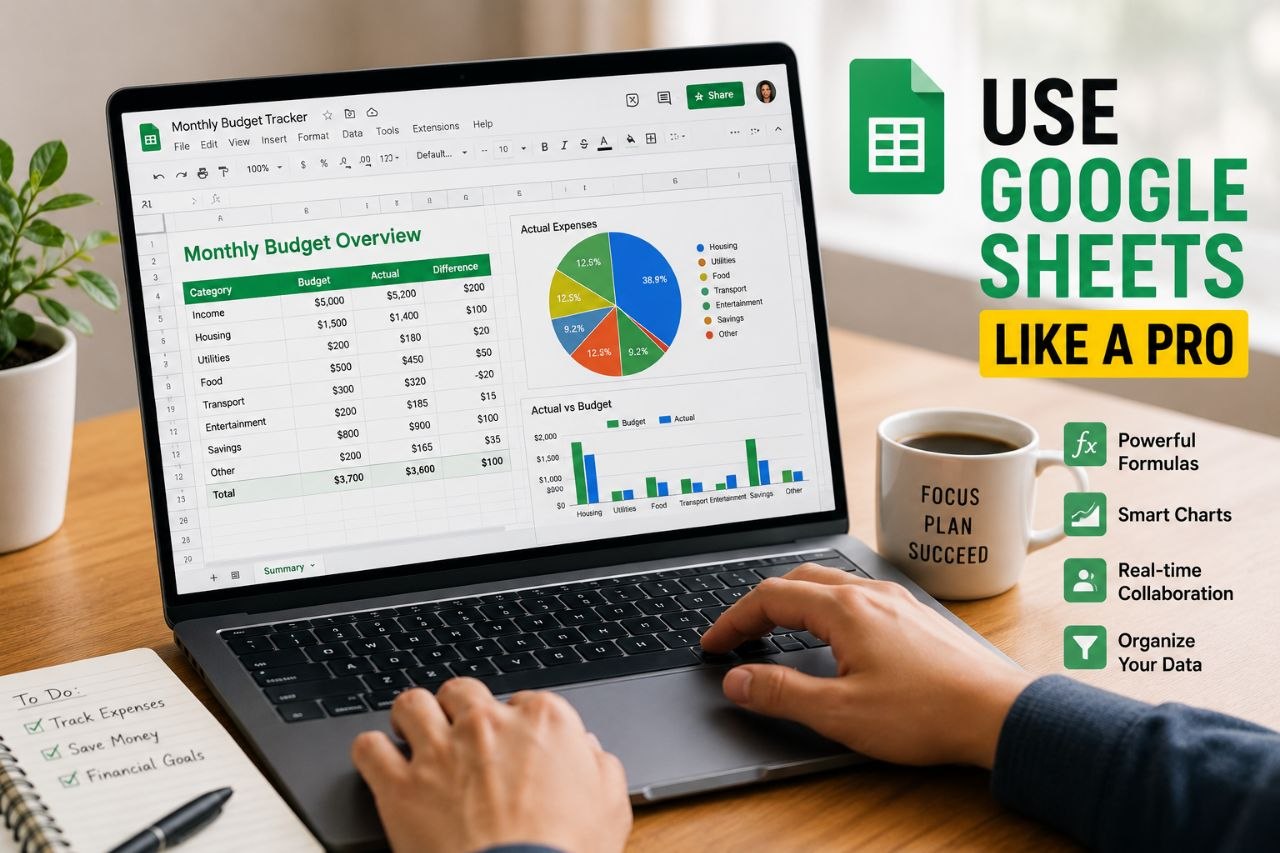
Google Sheets has evolved far beyond being a simple spreadsheet application. Today, it’s used by students, business owners, marketers, freelancers, project managers, and data analysts to organize information, automate repetitive tasks, collaborate in real time, and even build dashboards.
After researching Google’s latest features and comparing the workflows professionals use daily, I found that most people only use a small fraction of what Google Sheets can actually do. Learning a few powerful features can save hours of manual work every week.
Whether you’re tracking expenses, managing projects, analyzing data, or working with a team, this guide will help you use Google Sheets more efficiently.
Why Learn Google Sheets?
Many people search for:
- How do I use Google Sheets?
- What are the most useful Google Sheets formulas?
- How can I automate tasks in Google Sheets?
- Is Google Sheets better than Excel?
- How do professionals use Google Sheets?
The answer is simple: Google Sheets combines powerful spreadsheet tools with cloud-based collaboration, making it one of the most versatile productivity apps available.
What Makes Google Sheets Different?
Unlike traditional spreadsheet software, Google Sheets automatically saves your work online and lets multiple people edit the same spreadsheet simultaneously.
That means you can:
- Access files from anywhere
- Share spreadsheets instantly
- Collaborate in real time
- View revision history
- Use powerful formulas without expensive software
For many users, it’s a practical alternative to desktop spreadsheet programs, especially when teamwork is involved.
Step 1: Master the Basic Formulas
Learning a few essential formulas is the fastest way to become more productive.
SUM
Adds numbers together.
Example:
=SUM(B2:B20)
Useful for:
- Budgets
- Sales reports
- Expense tracking
AVERAGE
Calculates the average.
Example:
=AVERAGE(B2:B20)
Useful for:
- Test scores
- Monthly sales
- Business reports
COUNT
Counts cells containing numbers.
Example:
=COUNT(B2:B20)
MAX and MIN
Find the highest and lowest values.
Examples:
=MAX(B2:B20)
=MIN(B2:B20)
IF
Returns different results depending on conditions.
Example:
=IF(B2>=70,"Pass","Fail")
This is useful for grading systems, performance tracking, and decision-making spreadsheets.
Step 2: Learn Powerful Lookup Functions
Professionals rely heavily on lookup functions.
XLOOKUP (where available)
Finds matching information across tables.
Example:
Look up an employee’s salary using their ID.
VLOOKUP
One of the most commonly used formulas.
Example:
Retrieve product prices from another table.
INDEX + MATCH
Many advanced users prefer this combination because it’s flexible and works well with complex datasets.
Step 3: Use Filters and Sorting
As spreadsheets grow, finding information becomes harder.
Google Sheets lets you:
- Sort A–Z
- Sort by numbers
- Filter specific values
- Hide unnecessary rows temporarily
Filters make working with large datasets much easier.
Step 4: Apply Conditional Formatting
Conditional formatting automatically changes cell colors based on rules.
Examples include:
- Highlight overdue tasks in red.
- Show top-performing sales in green.
- Identify duplicate entries.
- Flag low inventory.
Visual indicators help you spot important information instantly.
Step 5: Create Charts
Instead of reading hundreds of numbers, turn your data into visuals.
Google Sheets supports:
- Bar charts
- Line graphs
- Pie charts
- Area charts
- Scatter plots
Charts make reports easier to understand and present.
Step 6: Freeze Rows and Columns
Large spreadsheets often require scrolling.
Freezing the top row keeps your headers visible.
Go to:
View → Freeze
This is especially useful for financial reports, attendance sheets, and sales data.
Step 7: Collaborate Like a Team
One of Google Sheets’ biggest strengths is collaboration.
You can:
- Share spreadsheets with others.
- Control whether people can view, comment, or edit.
- Leave comments.
- Assign tasks.
- Track every change through Version History.
This eliminates the need to email updated spreadsheet versions back and forth.
Step 8: Use Keyboard Shortcuts
Keyboard shortcuts can save significant time.
Some useful ones include:
- Ctrl + C — Copy
- Ctrl + V — Paste
- Ctrl + Z — Undo
- Ctrl + Shift + V — Paste values only
- Ctrl + / — View shortcut list
Learning even a handful of shortcuts can noticeably improve your workflow.
Step 9: Automate Repetitive Tasks
Google Sheets includes automation features that reduce manual work.
Examples include:
- Autofill
- Smart Fill
- Data validation
- Drop-down lists
- Named ranges
- Notifications for changes
For more advanced workflows, Google Apps Script allows users to automate repetitive tasks with JavaScript.
Step 10: Protect Important Data
If you’re sharing spreadsheets, protect critical information.
Google Sheets allows you to:
- Lock individual cells.
- Protect entire sheets.
- Restrict editing permissions.
- Control who can download or print files.
This helps prevent accidental changes.
Recommended Tools
If you want to take Google Sheets even further, these tools are worth exploring:
Google Forms
Automatically sends survey responses into Google Sheets.
Perfect for registrations, feedback forms, quizzes, and data collection.
Looker Studio
Connects directly to Google Sheets to create interactive dashboards and visual reports.
Google Apps Script
Lets you automate repetitive tasks and build custom workflows.
Gemini for Google Workspace
Google’s AI assistant can help generate formulas, summarize data, and assist with spreadsheet tasks in supported Workspace plans.
Common Mistakes Beginners Make
Avoid these common issues:
- Not using formulas.
- Entering inconsistent data formats.
- Forgetting to back up important spreadsheets.
- Sharing files with overly broad permissions.
- Ignoring data validation.
- Creating overly complex spreadsheets when simpler layouts would work.
Keeping spreadsheets organized from the beginning saves time later.
Frequently Asked Questions
Is Google Sheets free?
Yes. Google Sheets is free to use with a Google account, although some advanced features are available through Google Workspace subscriptions.
Can Google Sheets replace Excel?
For many everyday tasks, yes. Google Sheets is excellent for collaboration, cloud access, and general spreadsheet work. Some advanced Excel-specific features may still be preferred in specialized business or engineering environments.
Does Google Sheets work offline?
Yes. Offline access is available if you enable it beforehand, allowing you to continue working without an internet connection and sync changes later.
Final Thoughts
Google Sheets is much more than a digital spreadsheet. Based on my research, it’s one of the most versatile productivity tools available, capable of handling everything from simple budgets to complex business dashboards and collaborative projects.
Share this article
More from AI
View all →
AI
Learn How to Make Viral TikTok Videos: What Actually Works in 2026
Want more views on TikTok? Learn how the TikTok algorithm works, what makes videos go viral, and the strategies successful creators use to grow their audience.

AI
How YouTube Pays Creators: A Complete Guide to Making Money on YouTube
Curious about how YouTube creators make money? This guide explains the YouTube Partner Program, ad revenue, RPM, CPM, and the different ways creators can build

AI
Learn How to Convert PDF Files Easily (2026 Step-by-Step Guide)
Need to convert a PDF? This complete guide explains how to convert PDF files into Word, images, and other formats or create PDFs from documents and photos using

AI
Best AI Image Generators (2026): The Top Tools Worth Using Right Now
Looking for the best AI image generator? Here’s comparison of the top AI image creation tools in 2026, including their strengths, weaknesses, and the best use c